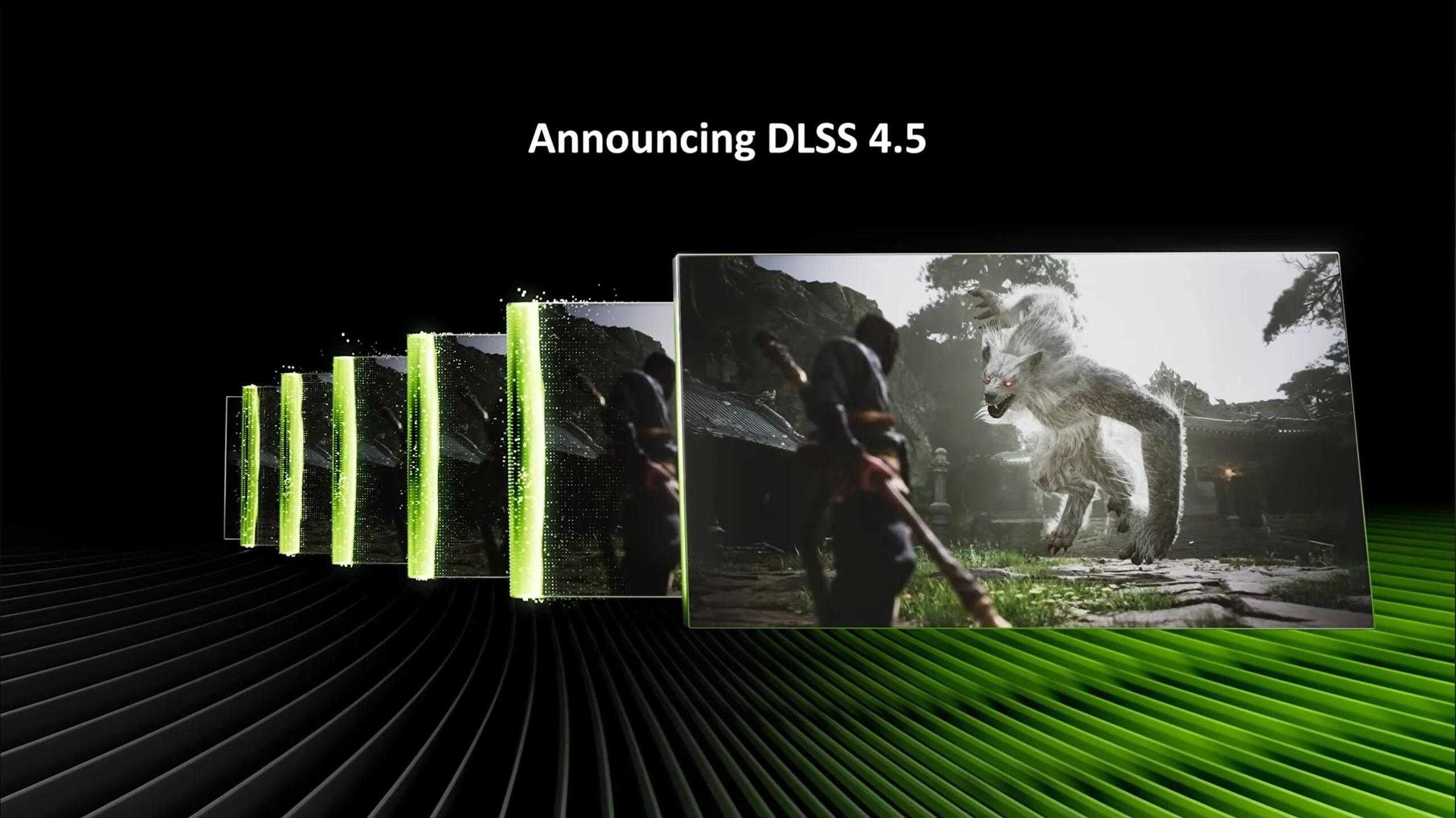
NVIDIA has released additional clarification around DLSS 4.5 Super Resolution following community questions, offering a clearer picture of what the latest update actually changes and where its benefits are most noticeable. Officially unveiled during NVIDIA’s CES 2026 keynote on January 6, DLSS 4.5 represents another step in the company’s long-running effort to move real-time rendering away from native resolution and toward AI-assisted reconstruction, whether users are fully ready for that shift or not.
At the center of DLSS 4.5 Super Resolution is a second-generation Transformer model. According to NVIDIA, this updated model improves lighting accuracy, reduces ghosting, and enhances temporal stability, areas that have historically been the most visible weaknesses of AI upscaling in fast-moving scenes. The improvement does not come from a single tweak but from expanded training, algorithmic enhancements, and a substantial increase in raw compute requirements, with NVIDIA stating that the new model uses five times the compute of its predecessor.
This heavier model is made practical on newer hardware through FP8 precision, which is accelerated on GeForce RTX 40 and 50 series GPUs. NVIDIA explains that this approach minimizes the performance impact that would normally come with such a large increase in computational complexity. However, RTX 20 and 30 series GPUs do not support FP8 acceleration. As a result, users on older cards may see a larger performance hit when enabling DLSS 4.5 Super Resolution, enough that NVIDIA openly suggests some players may prefer to remain on the existing Model K, also known as the DLSS 4.0 preset, if higher frame rates are the priority.

In its FAQ, NVIDIA staff summarized the core change as follows.
“DLSS 4.5 Super Resolution features a 2nd generation Transformer model that improves lighting accuracy, reduces ghosting, and improves temporal stability.”
They further note that “DLSS 4.5 Super Res uses FP8 precision, accelerated on RTX 40 and 50 series, to minimize the performance impact of the heavier model.”
DLSS 4.5 Super Resolution also introduces two new presets designed for specific use cases. Model M is optimized and recommended for DLSS Super Resolution Performance mode, while Model L is optimized and recommended for 4K DLSS Super Resolution Ultra Performance mode. Although both models are technically supported across Quality, Balanced, and DLAA modes, NVIDIA states that users will see the best balance of image quality and performance when using them in Performance and Ultra Performance modes.
It is also worth noting what DLSS 4.5 does not change. Ray Reconstruction is not updated to the second-generation Transformer architecture, meaning the visual benefits discussed here apply specifically to Super Resolution rather than NVIDIA full ray tracing reconstruction pipeline.
Outside of the FAQ, NVIDIA’s broader messaging around DLSS 4.5 leans heavily on its future-facing ambitions. The update was positioned as a reminder that native resolution is becoming less relevant, especially as AI-driven techniques continue to scale. In real-world terms, the improved Super Resolution model aims to reduce shimmering and ghosting in demanding titles with heavy motion, such as Cyberpunk 2077 or the upcoming 007 First Light, where previous DLSS versions could struggle under specific conditions.
While DLSS 4.5 Super Resolution is available across all RTX GPUs through a driver update, the experience is not equal across generations. Older cards can access the improved image quality, but without FP8 acceleration, the cost is higher. NVIDIA’s latest showcase feature, 6x Multi Frame Generation, further underscores this divide, as it is exclusive to GeForce RTX 50 series GPUs and designed to push frame rates far beyond what traditional rendering could achieve on its own.
For users who want to confirm that the correct DLSS model is active, NVIDIA recommends enabling the NVIDIA app overlay statistics view via Alt + Z, then Statistics, then Statistics View, then DLSS. This allows players to verify which model is currently in use and make informed adjustments based on their hardware and performance goals.