762 
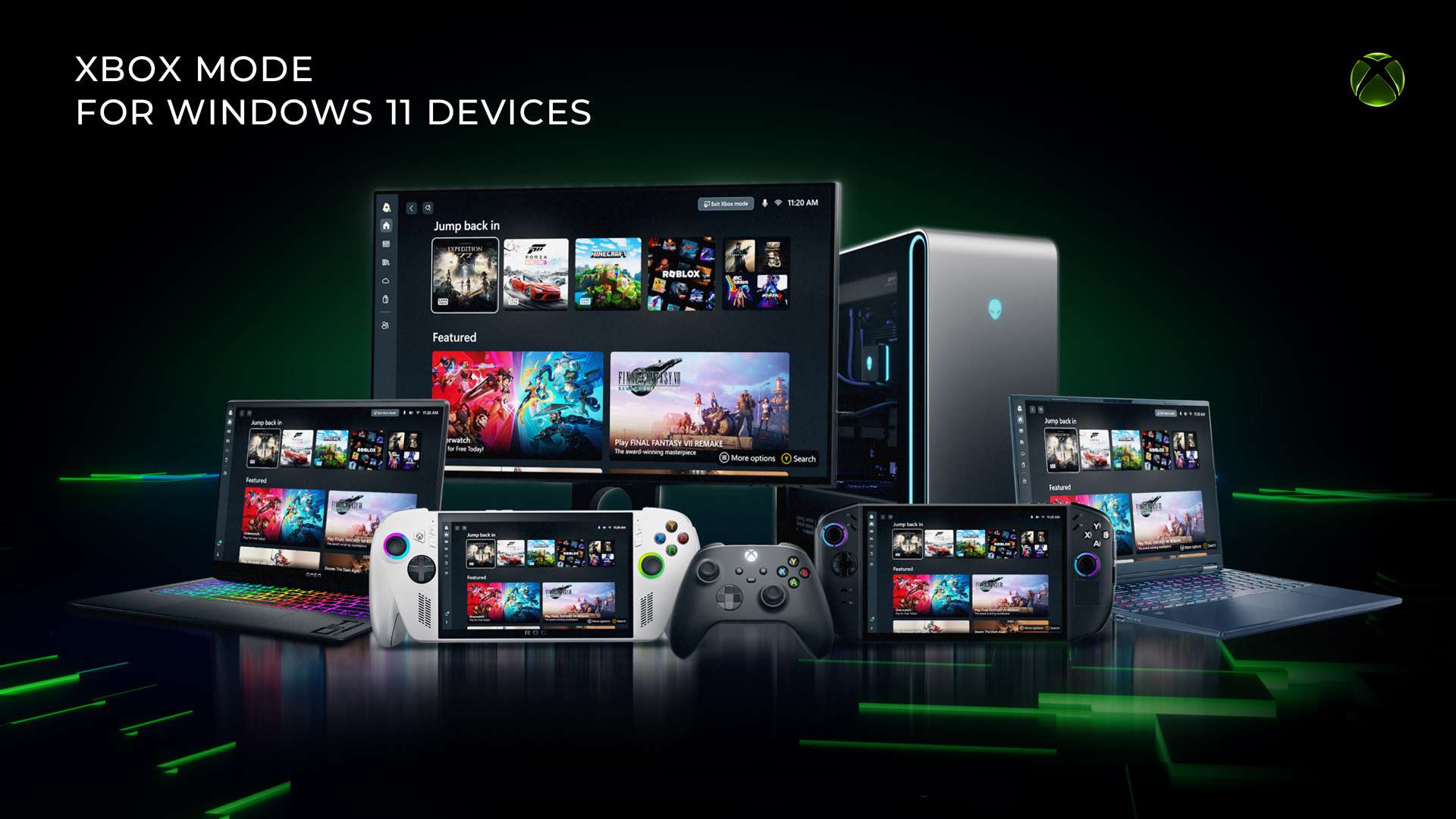
Microsoft has rolled out the Xbox mode for Windows 11 PC, and we’ve put together a step-by-step guide on enabling and fine-tuning it.
The new Xbox mode transforms a Windows 11 PC into a console-like experience, complete with a controller-friendly interface, quick app switching, and streamlined performance. The setup process is straightforward, and once enabled, you can freely switch between Xbox mode and the traditional desktop. Read ahead for a step-by-step guide.
Guide For Enabling Xbox Mode On PC
Follow the simple and easy steps below to setup Xbox mode on your PC.
- Open Settings -> Windows Update and enable the option to receive updates as soon as they’re available.
- Click Check for updates and install anything pending.
- After installation, allow your system to restart if prompted.
- Head to Settings -> Gaming to see a new section dedicated to Xbox mode
- Choose your preferred home app and decide whether your PC should boot directly into Xbox mode on startup. Enabling startup mode can reduce background services, potentially saving system memory.
- Enable or launch Xbox mode by pressing the Win + G keys on your keyboard or the Xbox button on a controller. Alternatively, it can also enabled from the Game Bar settings by selecting Enter Xbox Mode, or from the Xbox app.
Fine-Tuning Xbox Mode
The steps below are optional, though they are recommended to get the most out of the Xbox mode.
- Join Xbox Insider Hub for Early Features: Install the Xbox Insider Hub from the Microsoft Store for early access to new features. After signing up, head to Previews -> PC Gaming.
- Restart for Optimized Performance: When launching Xbox mode from the Xbox app, you’ll have the option to restart your system. Doing so prevents unnecessary background services from loading, which in turn improves performance.
- Add Games to Your Library: Xbox mode automatically scans for installed games, but you can manually add those that aren’t automatically detected by:
- Opening your library and clicking the Add (+) icon.
- Selecting executable (.exe) files from any drive, including external storage.
- Customize Game Bar and Widgets: Open the Game Bar to access widgets like audio controls, performance stats, and social features. You can remove unused widgets for a cleaner interface or install new ones from the widget store. Personalization options also include battery indicators and UI tweaks.
- Use Task Switcher for Multitasking and Games: The built-in task switcher lets you jump between apps and even multiple games. Some titles automatically pause when switching, though not all do, so manual pausing is recommended.
Xbox mode began rolling out for Windows 11 PC on April 30, 2026.