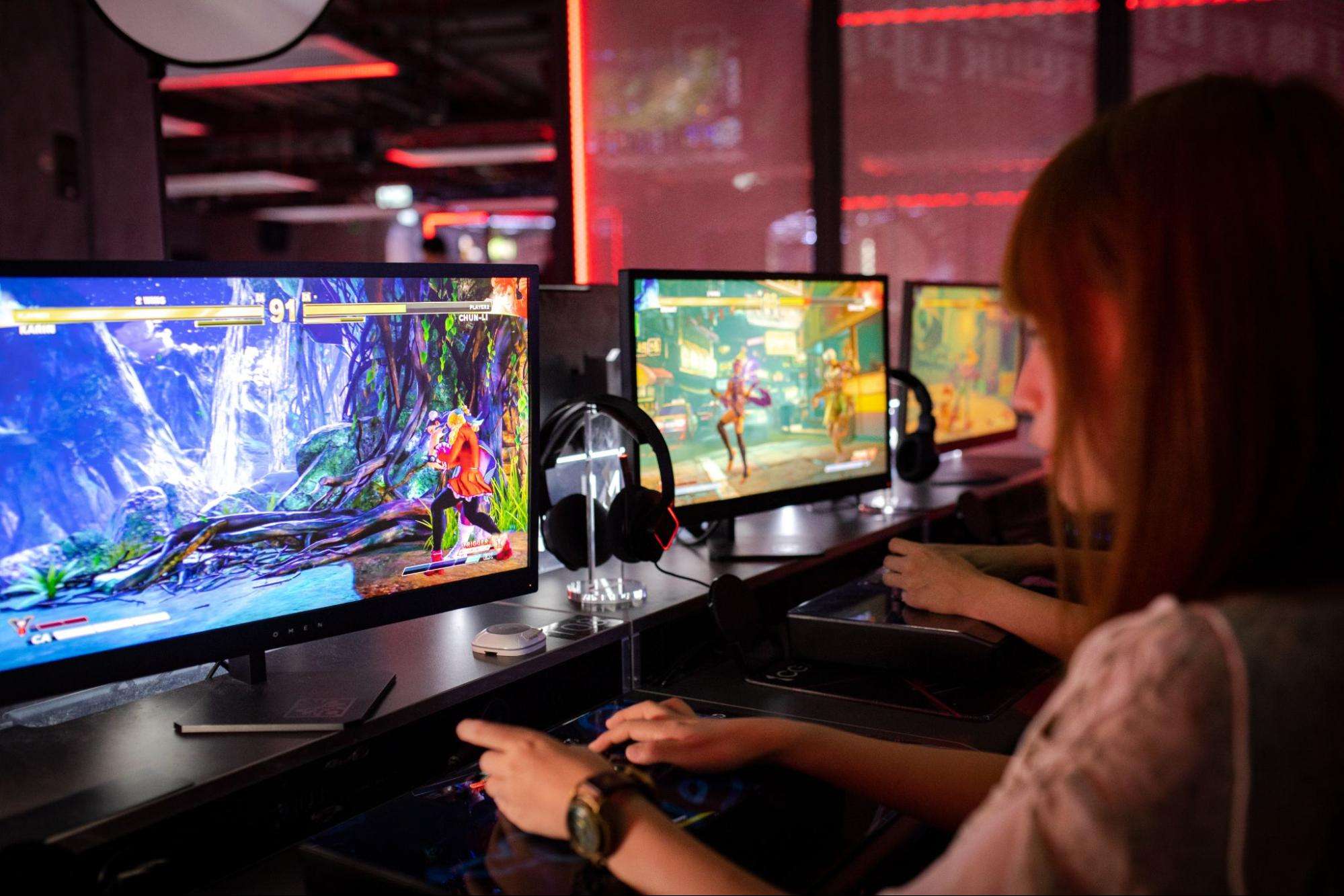
Roblox was built for accessibility first — it runs on phones, tablets, consoles, and low-spec PCs — but accessibility and optimal experience are not the same thing. Playing Roblox on a small mobile screen with touchscreen controls is functional, but it is nowhere near the experience that a proper PC setup delivers. The bigger display, mouse precision, keyboard shortcuts, and the stability of a desktop environment transform Roblox from a casual pick-up game into something that can genuinely compete with dedicated PC titles for immersive quality. For players who have been playing on mobile and want to make the jump, understanding the best path to PC play is the starting point.
Why PC Play Changes the Roblox Experience
The most immediate difference when moving Roblox from a mobile screen to a PC monitor is the visual scale. Games within Roblox — particularly the more ambitious titles like Brookhaven, Blox Fruits, and Adopt Me — are designed with more environmental detail than a phone screen can render at comfortable viewing size. On a PC monitor, that environmental detail becomes fully visible, and the sense of scale in large open-world Roblox games changes substantially. Players who have spent time in these games exclusively on mobile often find themselves noticing architectural and environmental details they had completely missed.
Control precision is the second major transformation. Mobile touchscreen controls require virtual joystick interactions and tap-based targeting that are inherently less precise than mouse aiming and keyboard movement. In Roblox games that involve combat, building, or navigation requiring precise inputs — Bedwars, Arsenal, Tower of Hell — this precision difference translates directly into performance improvement that is not attributable to skill increase but simply to better input hardware. Players who have felt limited by their mobile control accuracy often find that PC controls remove a ceiling on their performance that they had attributed to individual skill level rather than input device limitations.
Native PC Client vs Emulator: Understanding the Options
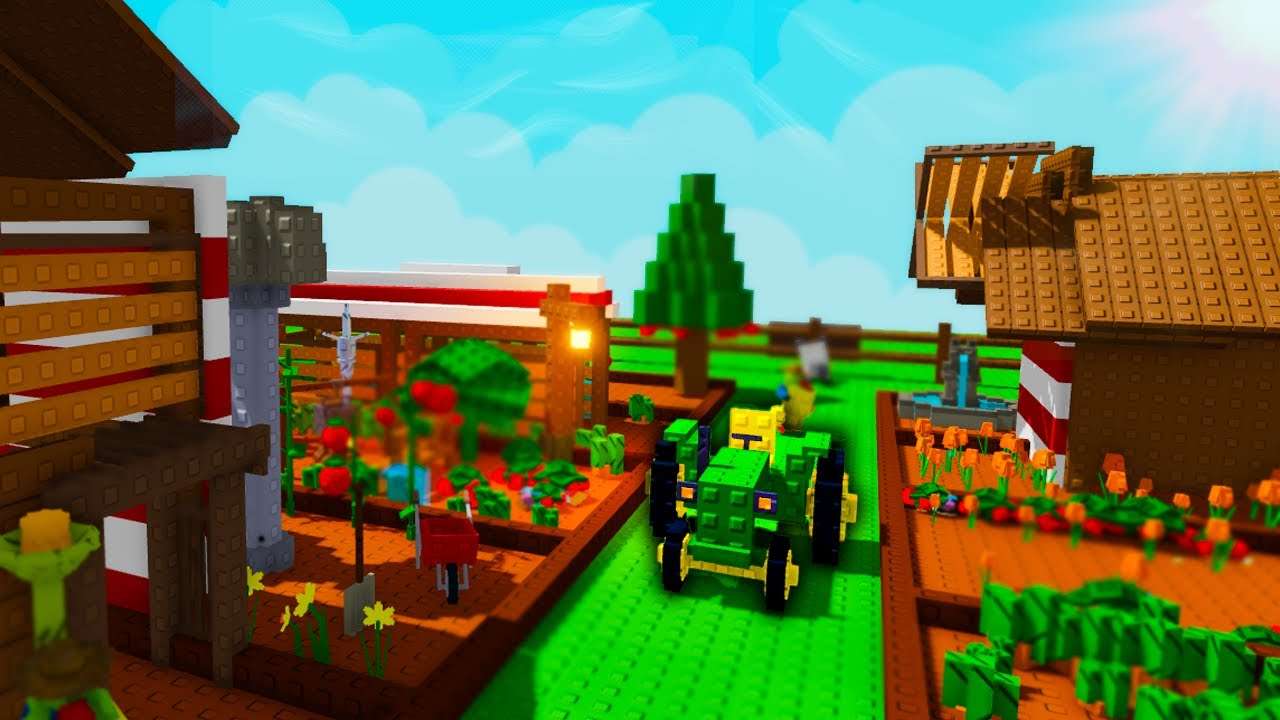
While Roblox offers a basic native PC client for straightforward access, many players are discovering that using an emulator unlocks a vastly superior gaming experience. The native app is adequate for casual use, but it remains a rigid, barebones application. In contrast, playing Roblox through an emulator transforms your PC into a powerful, unified gaming hub. Not only does it allow you to seamlessly manage Roblox alongside your other favorite mobile titles in one place, but it also provides game-changing customization that the native client completely lacks. With advanced controller support and highly granular custom keymapping tools, emulators give players precision control over every interaction, making it the absolute preferred choice for those who want to maximize their gameplay and gain a competitive edge.
Setting Up LDPlayer for Roblox
LDPlayer is an Android emulator designed specifically for gaming performance, with optimizations that address the performance overhead that general-purpose emulators introduce. Installing LDPlayer on a PC and then downloading Roblox through the Google Play Store within the emulator provides the Android version of Roblox running with PC-level hardware resources — more RAM, better GPU access, and CPU performance that mobile devices cannot approach.
After installation, LDPlayer’s key mapping feature is where the PC control experience truly comes together for Roblox. The emulator allows custom keyboard shortcuts and mouse controls to be mapped to any touch input on the screen, which means the standard WASD movement scheme, mouse camera control, and hotkey bindings for inventory or abilities can all be configured to match standard PC game control expectations. Players who spend ten minutes setting up a control scheme at the start will find subsequent Roblox sessions feel natural rather than like playing a ported mobile game with awkward control workarounds.
Optimizing Display Settings for the Best Visual Experience
LDPlayer’s display settings allow players to configure the resolution, frame rate target, and graphical quality within the emulator environment independently of what a mobile device would support. Running Roblox through LDPlayer on a capable desktop or laptop allows frame rate targets above what mobile hardware could sustain, higher resolution rendering that takes full advantage of a desktop monitor, and stable performance across extended sessions without the thermal throttling that causes mobile devices to reduce performance during long play periods.
For players using a 1080p or higher resolution monitor, configuring LDPlayer to match the display’s native resolution produces significantly sharper visuals than the compressed output that mobile rendering typically delivers. The combination of native monitor resolution, higher frame rate targets, and the larger screen area creates a Roblox experience that is visually distinct from mobile play in ways that go beyond simply showing the same image on a bigger screen.
Multiplayer and Account Considerations
Roblox accounts work seamlessly across all platforms. This means your existing account, purchased Robux, item inventories, and game progress will transfer perfectly to your PC, whether you use the native client or a powerful Android emulator like LDPlayer. Players who have invested in their mobile accounts don’t need to start over—the Roblox ecosystem is entirely unified.
To maximize your gaming experience, we highly recommend downloading the latest emulator version. As Roblox continuously evolves and rolls out exciting new updates, LDPlayer 14 is optimized to deliver the smoothest, highest-framerate gameplay. By pairing the newest Roblox version with LDPlayer 14, you ensure top-tier performance, flawless controls, and the ultimate PC gaming experience for every major game event.
Performance Tips for Smooth Gameplay
LDPlayer’s performance settings offer configuration options that can significantly affect Roblox gameplay smoothness on different hardware levels. Allocating sufficient RAM to the emulator — typically two to four gigabytes for comfortable Roblox performance — prevents the memory constraint stuttering that can occur when the emulator is allocated less than the game’s comfortable operating requirement. CPU core allocation, similarly, affects how smoothly the game runs in graphically demanding Roblox environments.