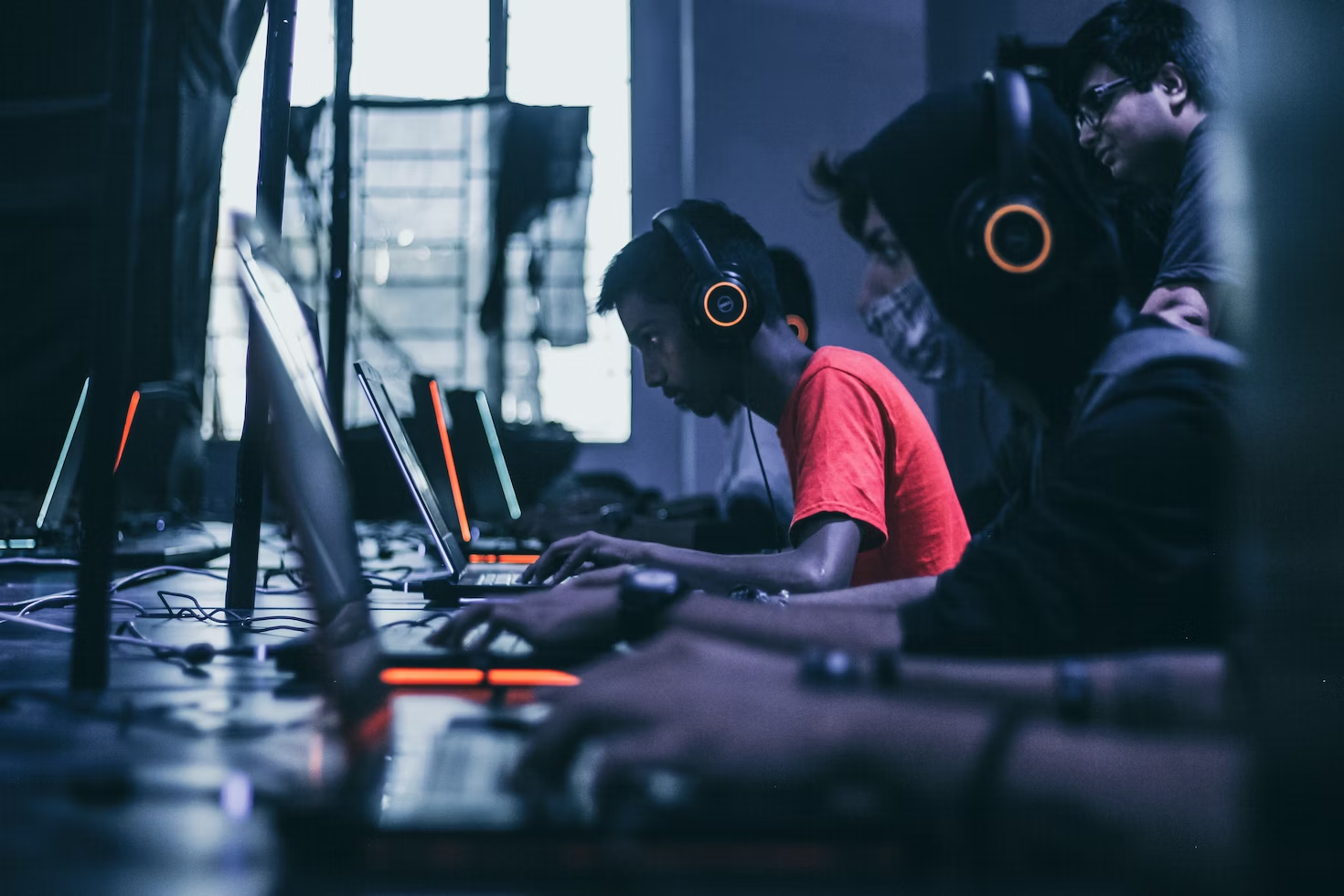
A comfortable gaming setup starts with the way hardware meets the player, not with the longest feature list. The strongest upgrades support a relaxed posture, a clear screen, and controls that stay easy to reach throughout a session. Use this checklist to sort practical priorities before spending on a monitor, headset, or new input device.
1. Start With Posture and Accessible Controls
Gamers often look for an Xbox Game Pass deal to cut subscription costs while preserving room in the budget for gear that improves daily play. A cheap Xbox ultimate game Pass deal can be one route to game access after comfort essentials have been selected. Eneba is a digital marketplace with verified merchants, and its product pages can show platform and regional information. Check the listing details, code validity information, and region fit for the intended account before purchase.
Place the monitor directly in front of the seating position rather than off to one side. OSHA recommends setting the top of the screen at or slightly below eye level, with the center normally 15 to 20 degrees below horizontal eye level. Its general workstation guidance places the display about 20 to 40 inches away, leaving room to adjust for personal vision and desk depth.
Keep the keyboard, mouse, or controller close enough to use without lifting the shoulders, bending the wrists, or turning the torso. Neutral wrist and forearm positions reduce awkward reaches, while lower-back support and stable foot support help the whole setup feel settled. An adjustable chair, desk height, or monitor stand can be a more useful purchase than a feature that never changes the player’s posture.
2. Pick a Monitor for the Games in Rotation
Monitor specifications work best as a match for the console and the games currently being played. Xbox Series X|S games can support up to 120 frames per second when both the game and display support it. That capability does not mean every title uses 120 FPS, so a 120 Hz panel is a focused choice for players whose games can take advantage of it.
Consider 4K, HDR, variable refresh rate, and low-latency features as a group of options rather than automatic requirements. Xbox Series X lists HDMI 2.1, HDMI Variable Refresh Rate, and Auto Low Latency Mode among its features, yet the useful combination depends on the console connection and game support. Platform compatibility and connection type deserve a place on every pre-purchase checklist.
Lighting is the next monitor setting to address. Reflections from windows, lamps, and overhead fixtures can make a screen harder to read and contribute to eye strain. OSHA advises positioning displays at right angles to windows and using indirect or shielded light where possible, then setting brightness for a clear image that does not appear harsh.
3. Put Headset Fit Ahead of Audio Labels
A headset earns its place through comfort over time, a microphone position that suits communication, and controls that can be used without disrupting posture. Check the headband adjustment, ear-cup fit, cable or wireless connection, and the location of volume controls before choosing a model. Those details shape everyday use more directly than an advanced audio label.
Listening habits are part of the setup, too. The World Health Organization advises keeping personal-audio volume down, taking breaks, and monitoring exposure, noting that safe listening duration falls as volume rises. For adults, it gives 80 dB for up to 40 hours per week as one example of a safe limit.
A good setup brings these picks together: a screen placed comfortably, peripherals within reach, and headset habits that leave space for breaks. When planning game access across regions, Eneba can fit into that approach as a digital marketplace for game keys, gift cards, and digital products, with platform and regional information available on product pages. The result is a gaming space built around the equipment and content choices that fit the player’s actual routine.